The library that puts your footage back to work
Vidloft's library is built for reuse. When you set up a project, add clips straight from your library, including footage you shot for another one, with nothing to download or upload again. This upgrade puts Assets and Collections in one place, gives the viewer more room, previews RAW and Photoshop files, and lets you share a Collection with anyone by link. It's live today for every Vidloft customer.
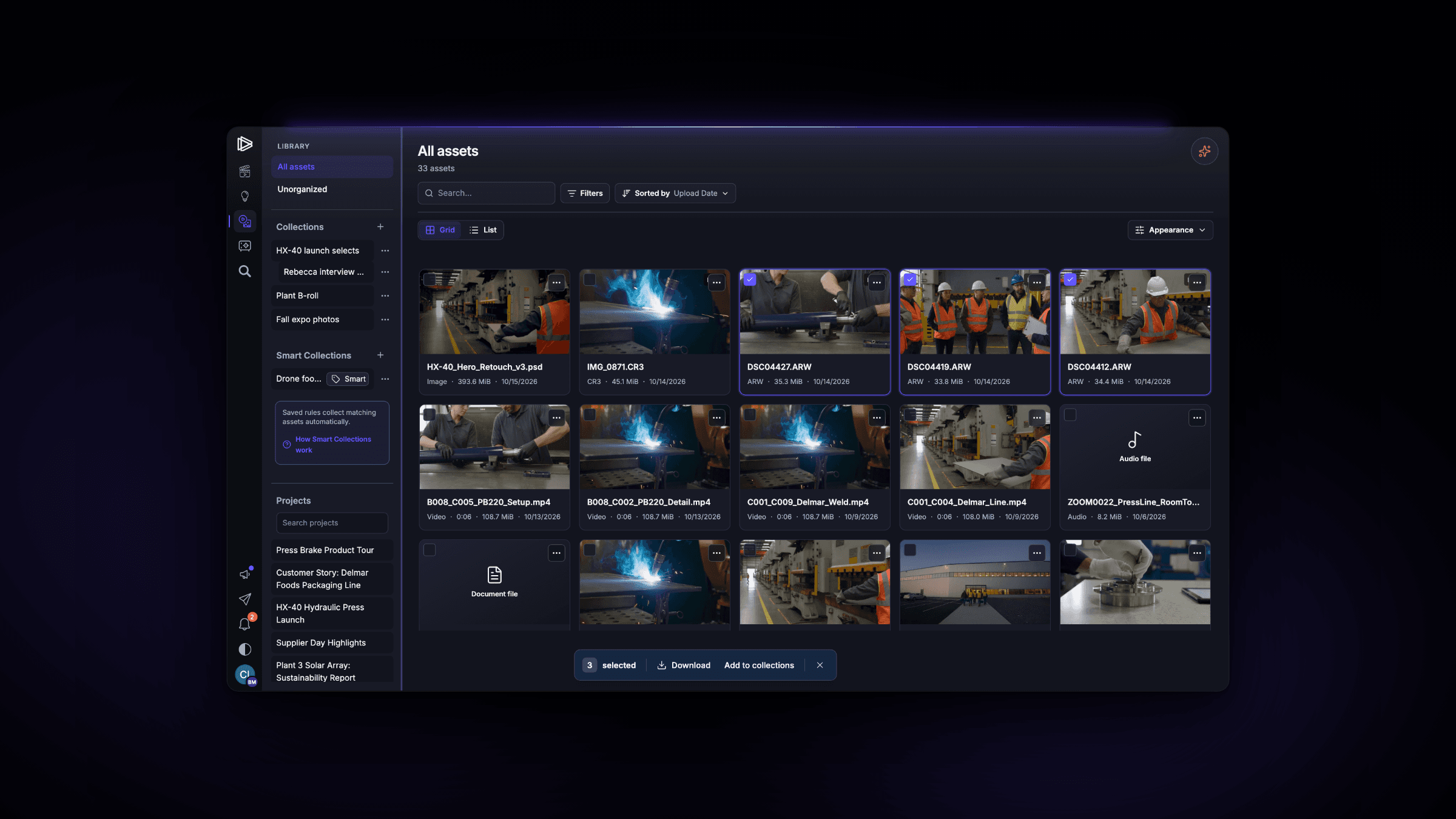
Most asset libraries are where footage goes to die. You dig a file out, download it, and start over somewhere else.
Vidloft's library works the other way. When you set up a project, add clips straight from your library, including footage you shot for another project. Nothing gets downloaded or uploaded again, and the original stays in your library. Your team iterates faster because everyone works from the same footage.
What the upgrade adds
- Assets and Collections in one place. Browse everything, a single project or a Collection from one sidebar, in a grid or a list.
- A bigger viewer. The media gets the screen, with the transcript on one side and the file's details on the other, including the projects that use it.
- RAW and Photoshop previews. RAW photos from Sony, Canon, Nikon and Fujifilm cameras, and Photoshop PSD files, now preview like any other photo. Your originals stay untouched.
- Guest galleries. Share a Collection with anyone by link. Guests browse and, if you allow it, download the originals. You see who downloaded what.
Also improved: portrait photos stay upright, ZIP downloads that include a file over 4 GB now extract fully on a Mac, and one tap opens a photo on a phone.
Where to find it
Open Assets in the left rail. To reuse a clip, add it from your library while you set up a project. To share a Collection, team owners and managers open it and choose Share.
New to Vidloft?
See how teams like yours make more on-brand video without hiring.
Already a Vidloft customer?
- Open Assets in the left rail to browse everything, one project or one Collection.
- To reuse footage, add clips from your library while you set up a project.
- To share a Collection, team owners and managers open it and choose Share.