Drop a whole shoot into one place and Vidloft sorts it for you.
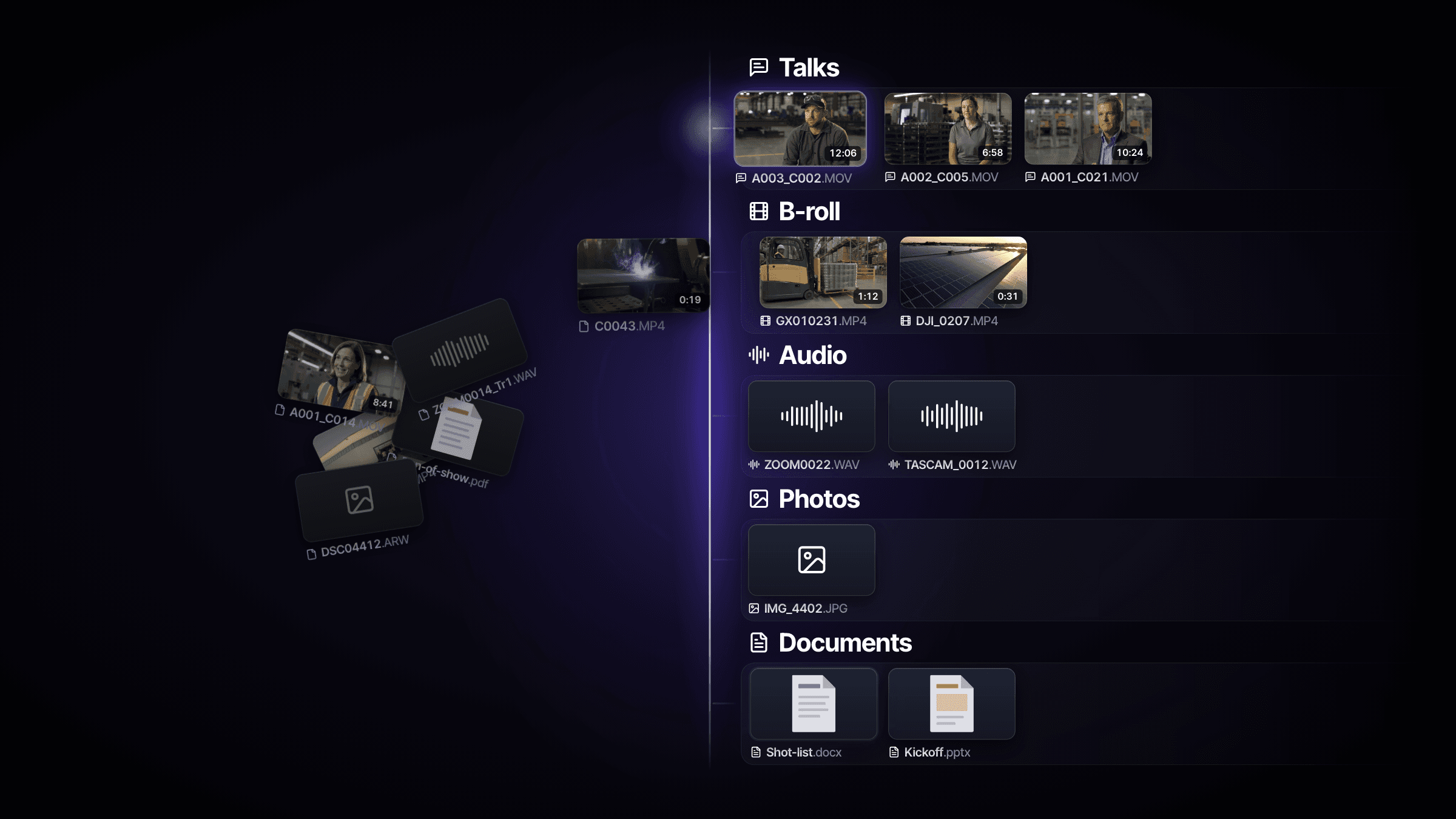
Smart Upload gives every project one place to drop a whole shoot. Vidloft works out what every file is and organizes the project into talks, B-roll, audio, photos and documents. Folders keep their structure, and you can drag files onto the deliverable they're for, so your editor knows exactly what goes where. Smart Upload is on for every Vidloft customer.
The problem
A shoot never arrives as one file. It shows up as two camera cards, a recorder's worth of audio, a few hundred photos, the run of show as a PDF and a logo pack someone forwarded the night before.
Until now, getting all of that into a project meant sorting it first. Interviews in one place, B-roll in another, everything else under attachments. Whoever was holding the drive had to decide what every file was before handing anything off. Recorder audio and slide decks never had an obvious home.
Then came the question that starts every edit: which of these files go in which video? The answer usually lived in an email, a spreadsheet or someone's head. Editors matched file names by hand. Someone always ended up digging through folders for the answer. Every project started with homework, and none of it was editing.
None of that is creative work. It's hunting, and hunting adds up.
Why we built it this way
We started from one rule. The person uploading shouldn't need to know how every file will be used. They should be able to drop the whole shoot at once and get back to their day.
So every project now has one drop zone. Footage, audio, photos, decks and logos all go in the same place, whole folders included, and Vidloft works out what each file is. Nobody labels anything by hand. If a file lands in the wrong place, change its type in a click and it moves. Camera clutter like system files and proxy copies gets skipped, and Vidloft tells you how many it left out.
We kept what you already organized. Drop a folder tree and its structure stays, in the project and in your editor's download.
And we closed the gap between files and the work they're for. A deliverable can now carry its own files, so the brief says exactly which footage feeds the teaser and which feeds the recap. Your editor stops guessing, and you stop answering the same question twice.
We're not the only ones who see what hunting costs. McKinsey measured how much of the workweek goes to finding information.
Research receiptBuilt this way because McKinsey Global Institute, The Social Economy (2012) found knowledge workers spend 19% of their workweek tracking down information. Why it works
How it works
- Drop the whole shootDrag camera cards, folders and loose files onto the drop zone in any project. Footage, audio, photos, decks and logos all go in the same place.
- See what arrivedA summary card counts what came in, from talks and B-roll to photos and documents, and keeps updating while the last files sort.
- Find anything fastThe project opens sorted into talks, B-roll, audio, photos and documents. Filter by type, search, or sort by date captured or camera.
- Link files to deliverablesOn a draft, drag files onto a deliverable in the sidebar. Each deliverable shows what's attached, and an Unattached filter finds anything left over.
- Brief every cutSet the project's tone and where it'll be seen, then an aspect ratio for each deliverable. Add on-camera talent with headshots, so the right name lands under the right face.
Camera clips that still need a closer look wait in a Sorting group at the top of the project and move into place on their own. Your editor sees the same organized project, with each deliverable's files listed in the brief and the download.
Multi-camera interviews get special treatment. Every camera and recorder from one interview folds into a single stack, already lined up, so the Talks section shows each interview once. That's Stacks, which launched alongside Smart Upload.
You can also select a batch of files at once with a drag, the keyboard or a shift-click, then change their type, download them or remove them together.
Who it's for
Smart Upload is for teams that shoot often and hand footage to editors. Marketing teams running customer stories and events. Internal comms teams filming leadership updates. Recruiting teams capturing a day in the life. Most of the people uploading aren't editors, and now they don't have to think like one.
If you've ever sent a folder and then a three-paragraph email explaining it, this is for you.
New to Vidloft?
See how teams like yours make more on-brand video without hiring.
Already a Vidloft customer?
- Open any project
- Drop files or a whole folder onto the drop zone
- On a draft, drag files onto a deliverable in the sidebar
What's next
Your current projects get the same treatment. When Smart Upload switched on, Vidloft went back through your active projects and sorted the footage already in them. Completed and archived projects stay as they were.
Next time a shoot wraps, skip the sorting. Drop the whole thing in, then tell us what you'd like Vidloft to organize next. Your requests shape what we build.